Microsoft Word
Opens soonFor Microsoft 365, Office 2021 or later, and Office 2019 Retail on Windows
Notify me at launch
In development, not yet publicly available
Appendix
We’re hand-finishing the installer and hardening the release pipeline. Leave your email — you’ll get exactly one message when the download opens.
Leave your email and you get
The trial runs the first week; the discount stays open a week after it ends. Monthly plans only — not credit top-ups.
One email when downloads open. Nothing else.Privacy
Bind your own copy of the manuscript.
Choose Your Platform
For Microsoft 365, Office 2021 or later, and Office 2019 Retail on Windows
In development, not yet publicly available
WPS Writer support is planned for a future release
System Requirements
Installation Guide
Follow these steps to install and activate the Textmolt add-in in Microsoft Word.
This is the exact install flow you’ll follow — three steps, about a minute.
Extract the downloaded ZIP file to any folder.
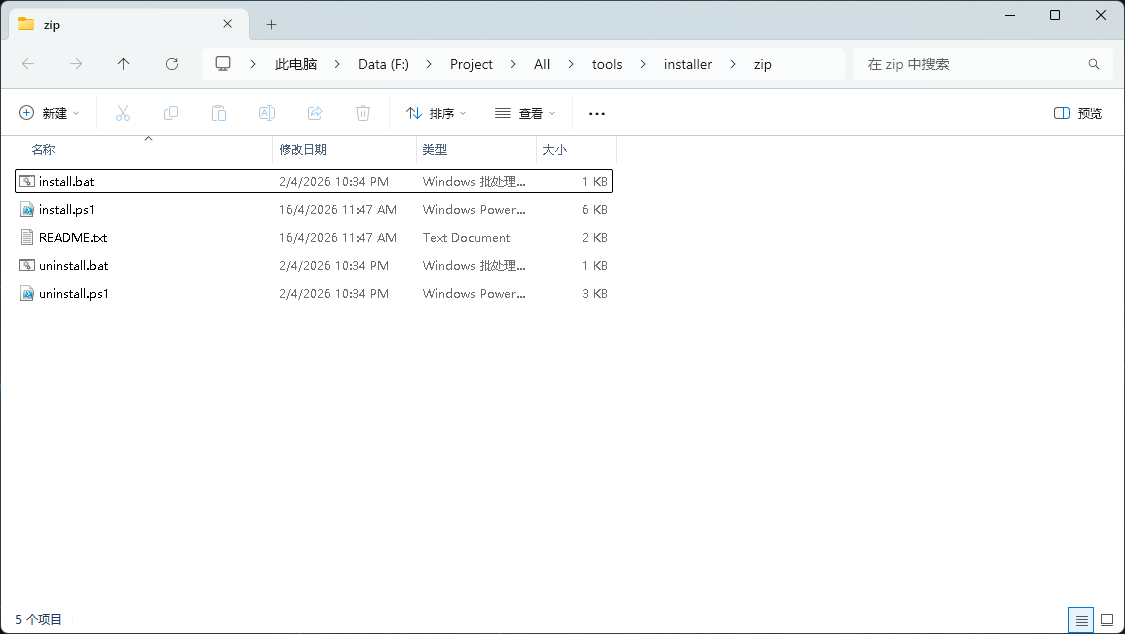
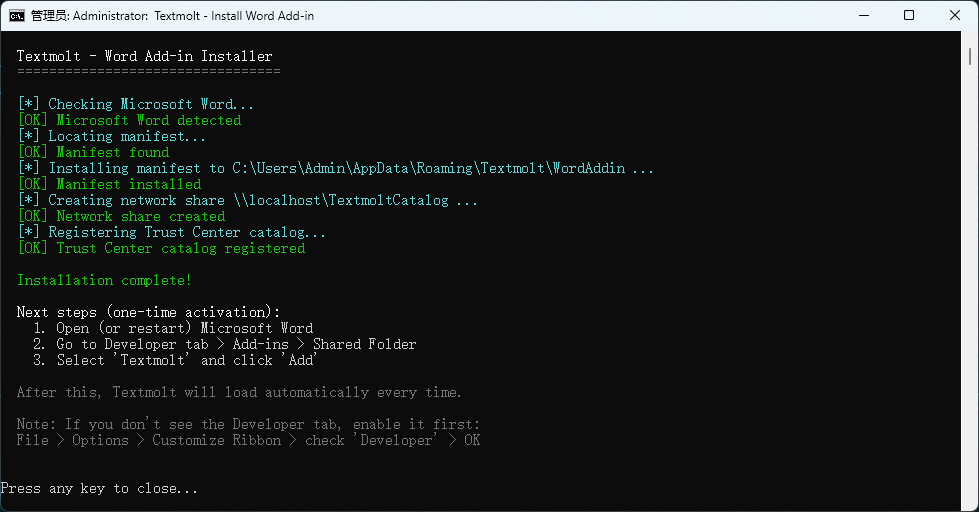
Right-click "install.bat" and select Run as administrator. If a security dialog appears, click "Run".
Open Word, go to Developer tab > Add-ins > Shared Folder, select "Textmolt" and click "Add". This is a one-time step — the "Textmolt" tab will appear in the ribbon automatically on future launches. If you don't see the Developer tab: File > Options > Customize Ribbon > check "Developer" > OK.
If the Developer tab is not visible, enable it first: File > Options > Customize Ribbon > check "Developer" > OK.
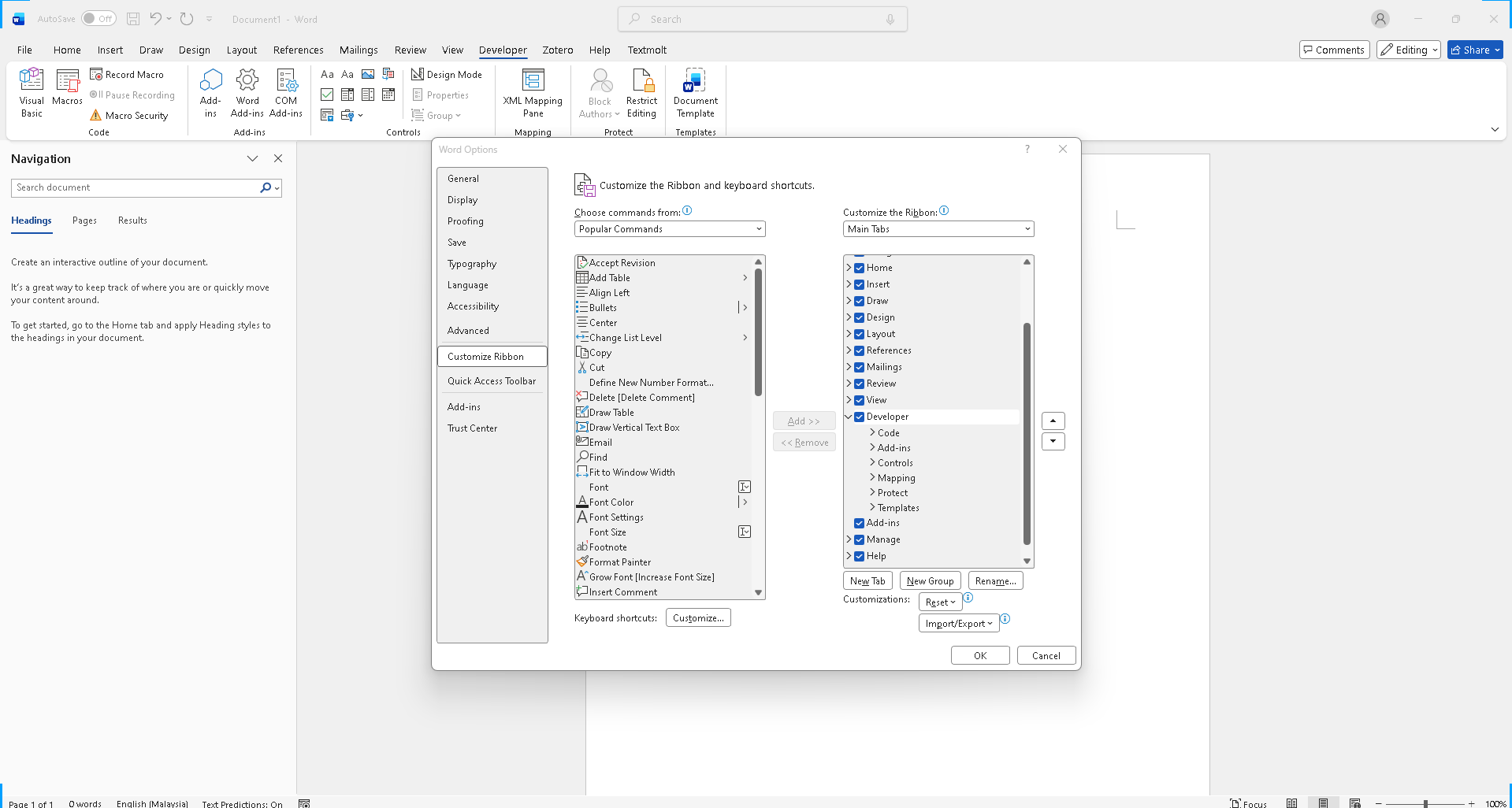
You should now see the Developer tab in the ribbon.
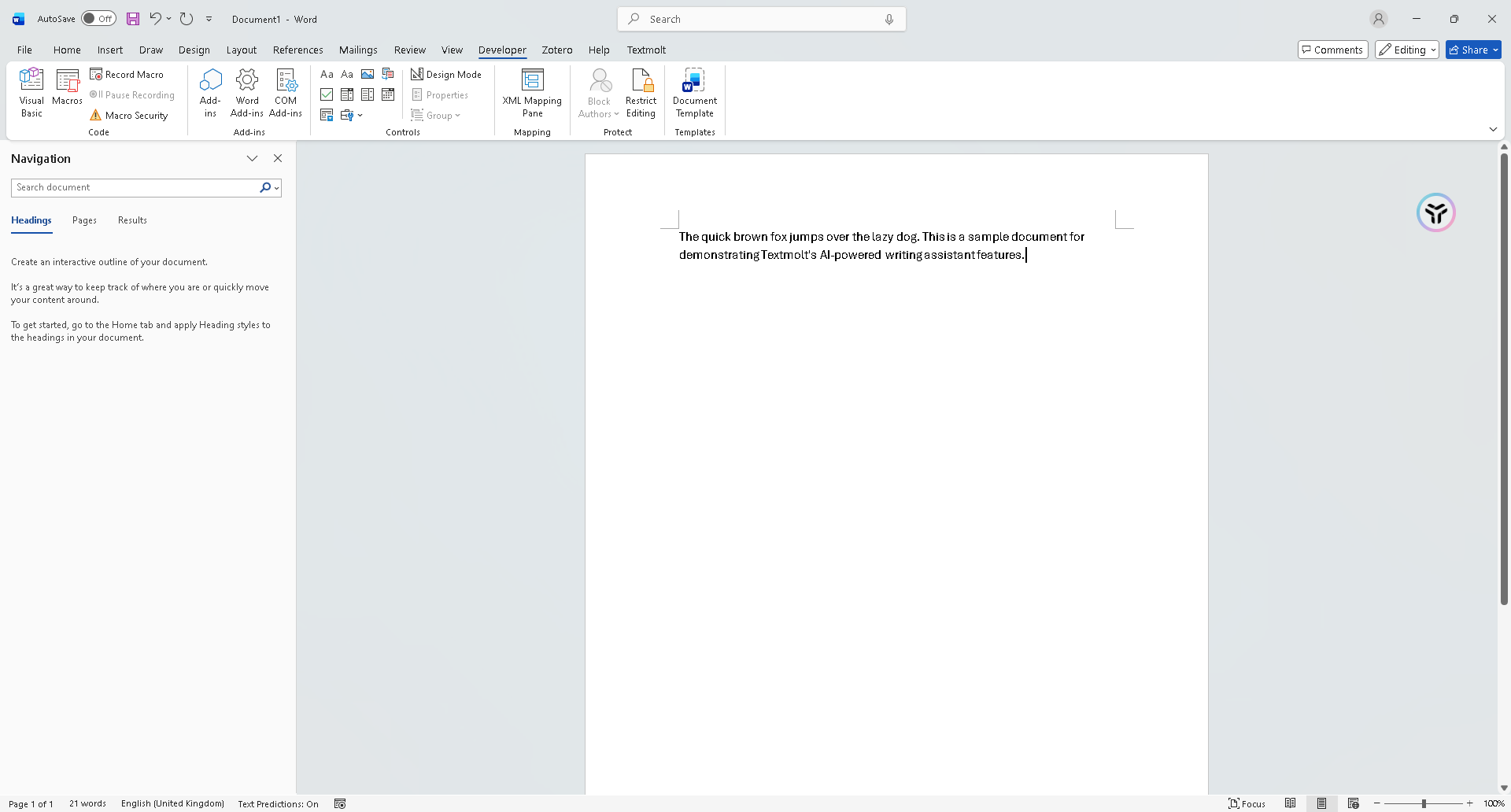
Click "Add-ins" in the Developer tab, switch to the "Shared Folder" tab, select "Textmolt" and click "Add".
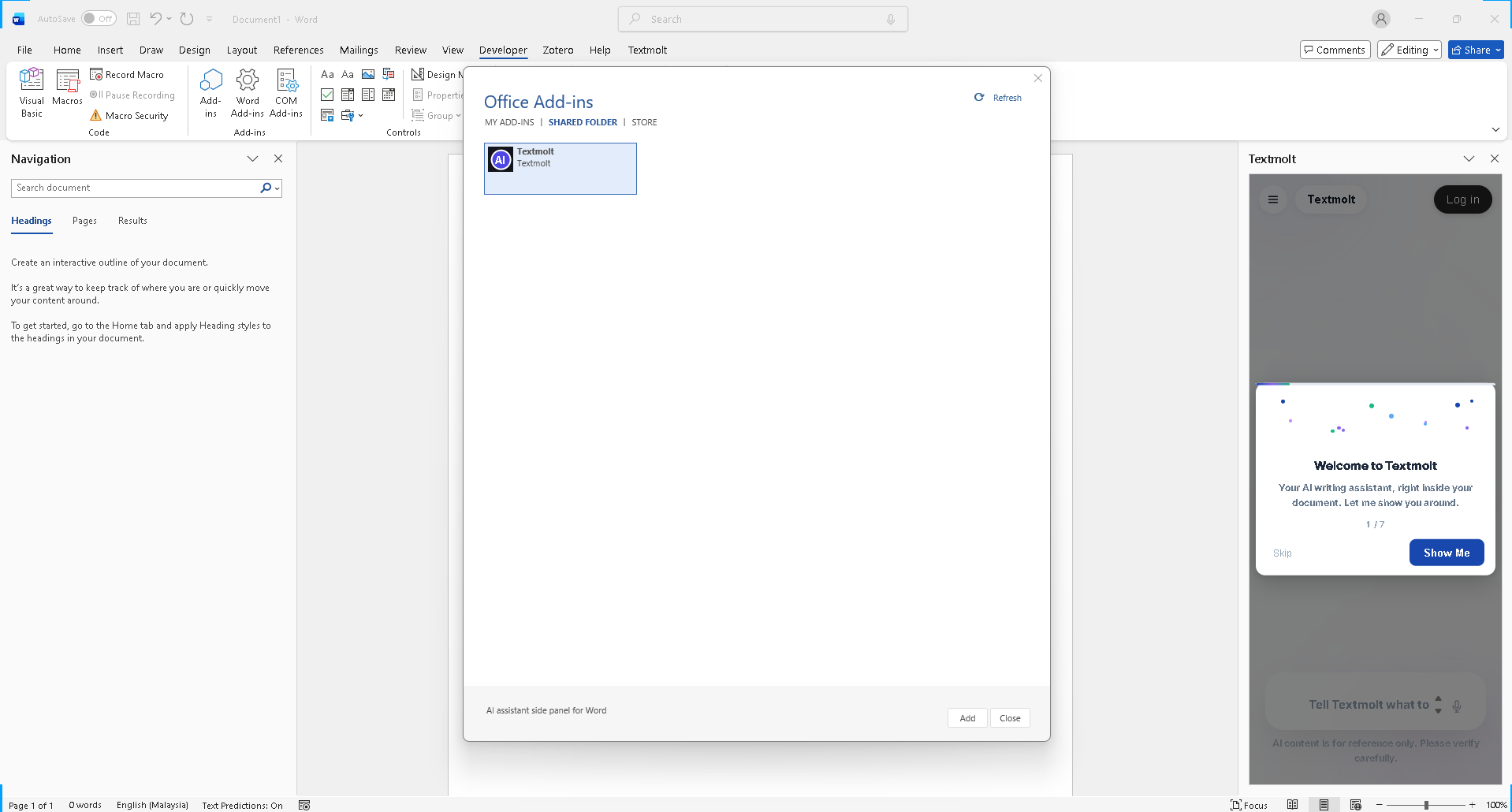
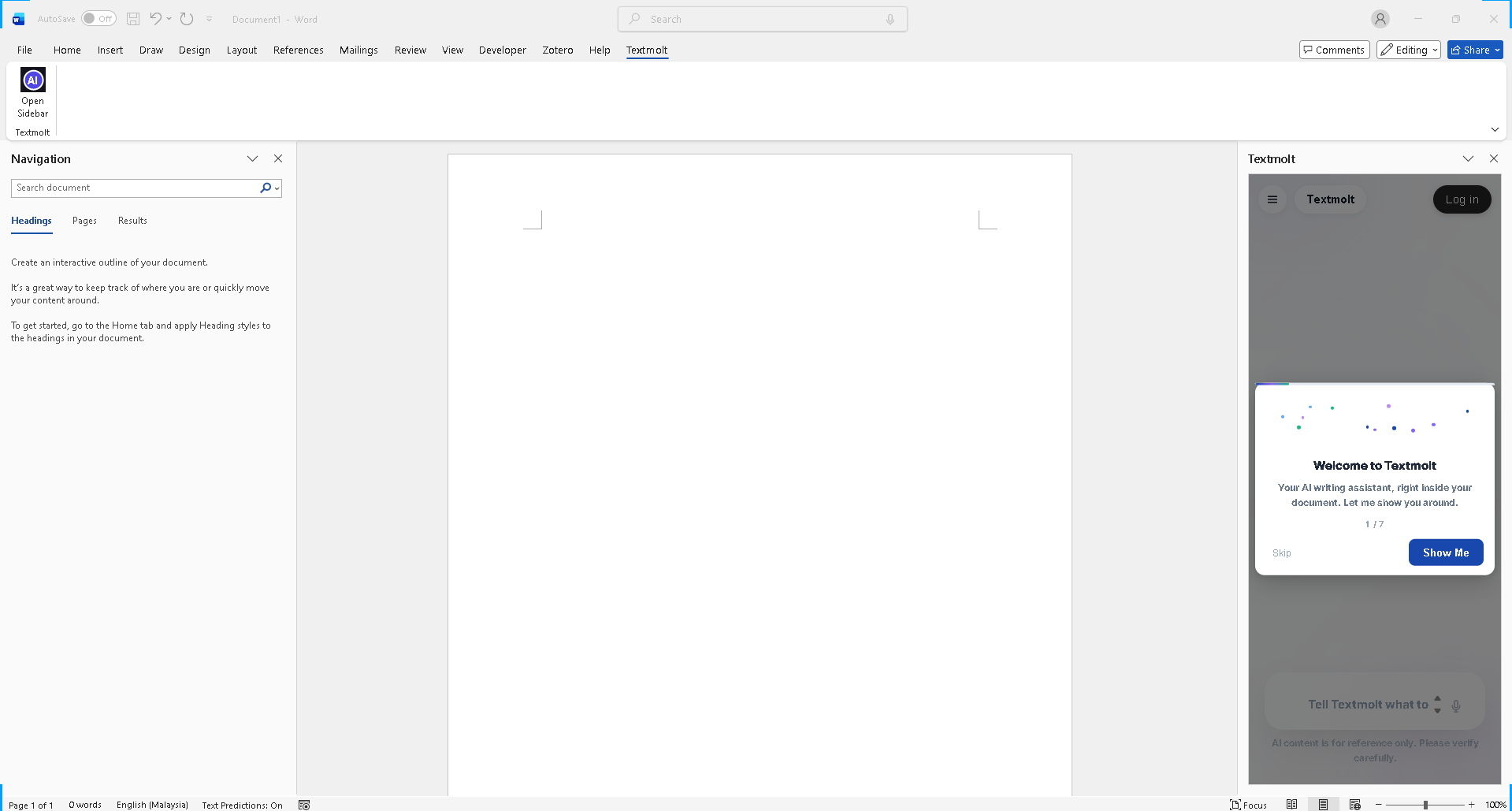
Done! The "Textmolt" tab now appears in the ribbon. Click "Open Sidebar" to launch the AI panel.
You may not have run install.bat as administrator. Try re-running install.bat as administrator, or manually configure: File > Options > Trust Center > Trust Center Settings > Trusted Add-in Catalogs, add the path shown by the installer, check "Show in Menu", click OK, then restart Word and try step 3 again.
Reference: installer output
Your Office version may be missing WebView2 Runtime. Download it from: https://developer.microsoft.com/en-us/microsoft-edge/webview2/ (choose Evergreen Standalone Installer). Note: Office 2019 Volume License (MSI) and Office 2016 are NOT supported - installing WebView2 will not help. These versions must be upgraded.
File Verification
Every public release ships with a SHA-256 checksum published on this page, so you can confirm your download is exactly what we built.
Frequently Asked Questions
After running install.bat, open Word and go to Developer tab > Add-ins > Shared Folder > select "Textmolt" > Add. This is a one-time step — after that, the Textmolt tab appears in the ribbon automatically. If you don't see the Developer tab: File > Options > Customize Ribbon > check "Developer" > OK.
Double-click "uninstall.bat" in the extracted folder (right-click > Run as administrator if you installed as admin).
This usually means your Office version is missing WebView2 Runtime. Download it from https://developer.microsoft.com/en-us/microsoft-edge/webview2/ and restart Word. Important: Office 2019 Volume License (MSI) and Office 2016 are NOT supported - installing WebView2 will not help, as these versions are hardcoded to use IE11. You must upgrade to Office 2021 or later, or Microsoft 365.
The add-in itself is lightweight and works offline for basic features. However, AI-powered features (rewriting, translation, Q&A) require an internet connection to communicate with the AI service.
Textmolt will notify you when an update is available via an in-app banner. Download the new ZIP from this page, extract, and run install.bat again.